Step-by-step guide · about 35 min + extras
Your business, up and running in an afternoon.
With a single QR code, your guests read your menu, book, tip and review you on their own — and you get time back for what matters: looking after them.
€10 tip → you receive ≈ €8.90. No monthly fee.See breakdown
What it costs
No monthly fee and no setup cost. Here's what happens to a €10 tip:
The card fee is charged by Stripe and depends on the card, so it's an estimate. VAT on Kwibli's fee goes on a monthly invoice. If the guest ticks the box to cover the fees, the whole tip reaches you.
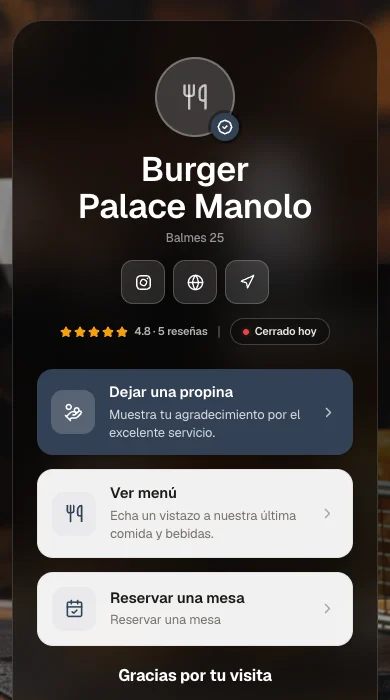
Words you'll see
- Dashboard
- Where you run your whole business. Only you get in.
- Your page
- Your business online: name, photos, hours and buttons.
- QR code
- The little square a guest scans with their camera to open your page.
- Page address
- Your page’s web address, e.g. kwibli.com/space/casa-pepe.
- Stripe
- The company that takes card payments. The money goes to your account.
- Section
- Each block of your page: hours, map, photos… Only what you add shows.
- No-show
- A guest who books and neither turns up nor lets you know.
- Publish
- Make a change visible to your guests.
Chapter 13 min
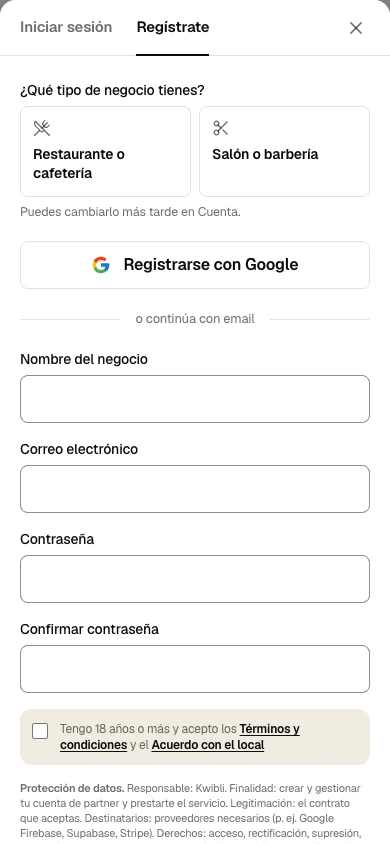
Create your account
Your account is ready in a few minutes. Have your email address handy.
Chapter 25 min
Make it yours
Your style, your logo and your page address, so guests recognise you at a glance.
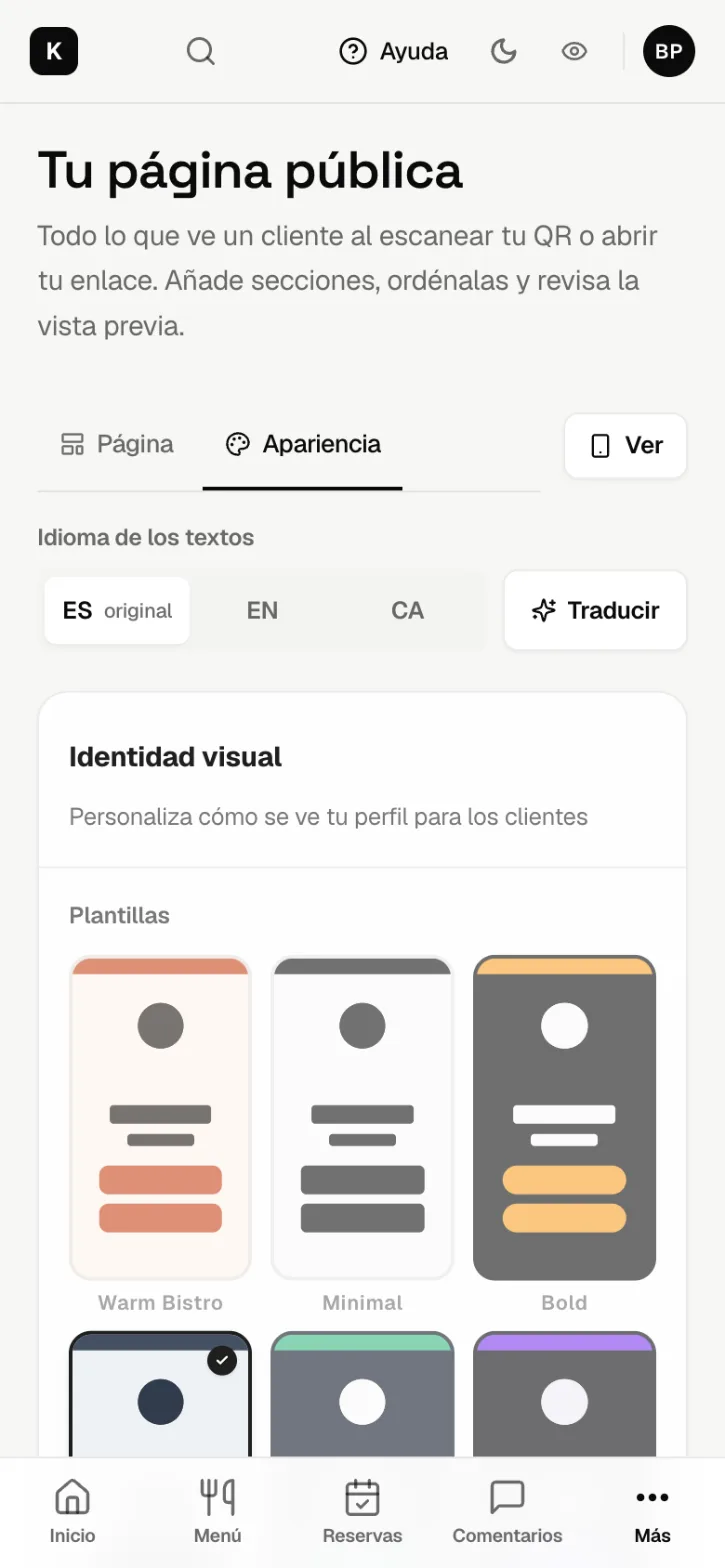
- When you log in you land on Home: what happened at your venue today. The first time you'll also see a setup list that walks you through.
- Unsure on any screen? Tap Help at the top: short answers for the page you're on.
Chapter 35 min
Your page and your QR
One QR on the table or the counter does everything. First you set up your page; then you print the QR that opens it.
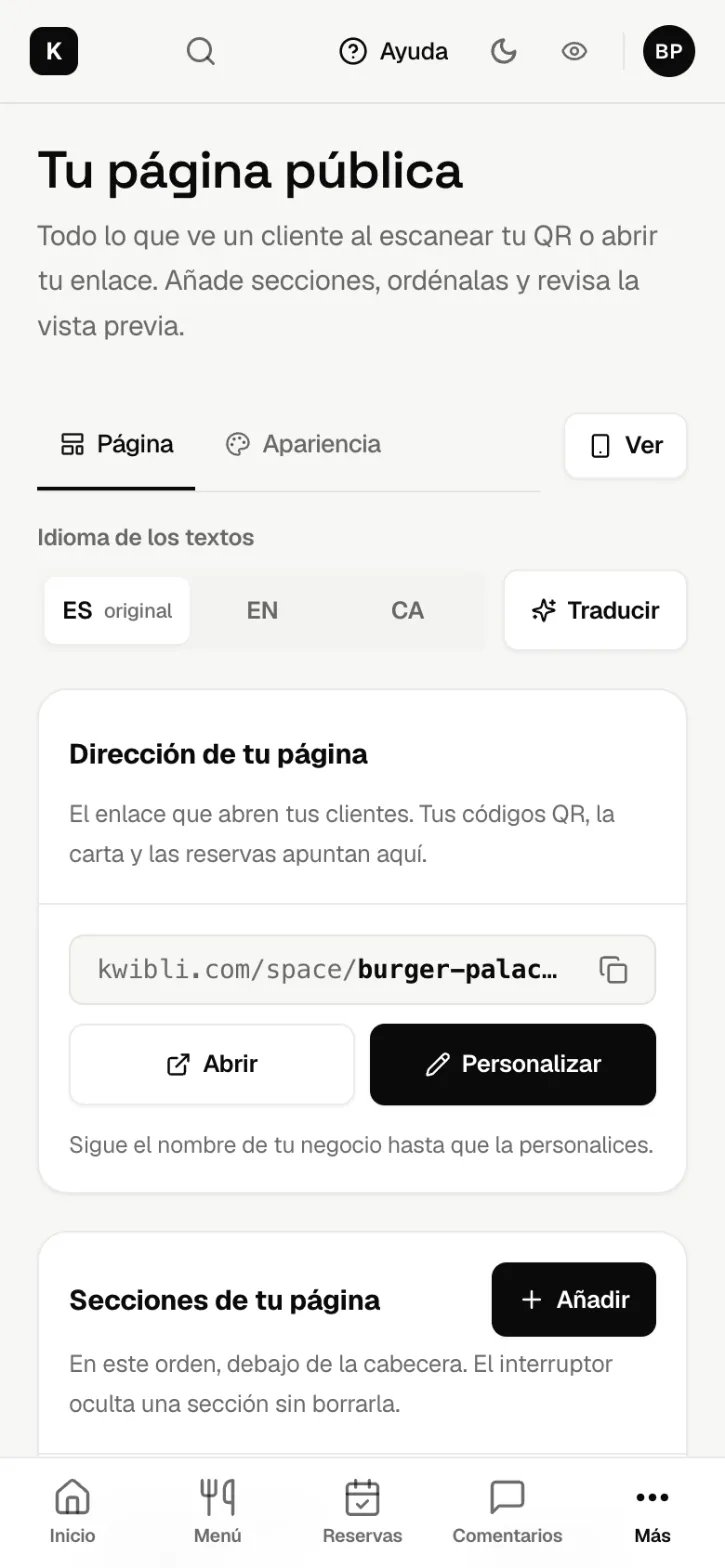
- Further down that same screen you’ll find ideas for where to put it: on tables, the bar, the window or reception.
Chapter 45 min
Your menu or services
You don't have to type anything from scratch: if you already have a paper or PDF menu, upload it as it is.
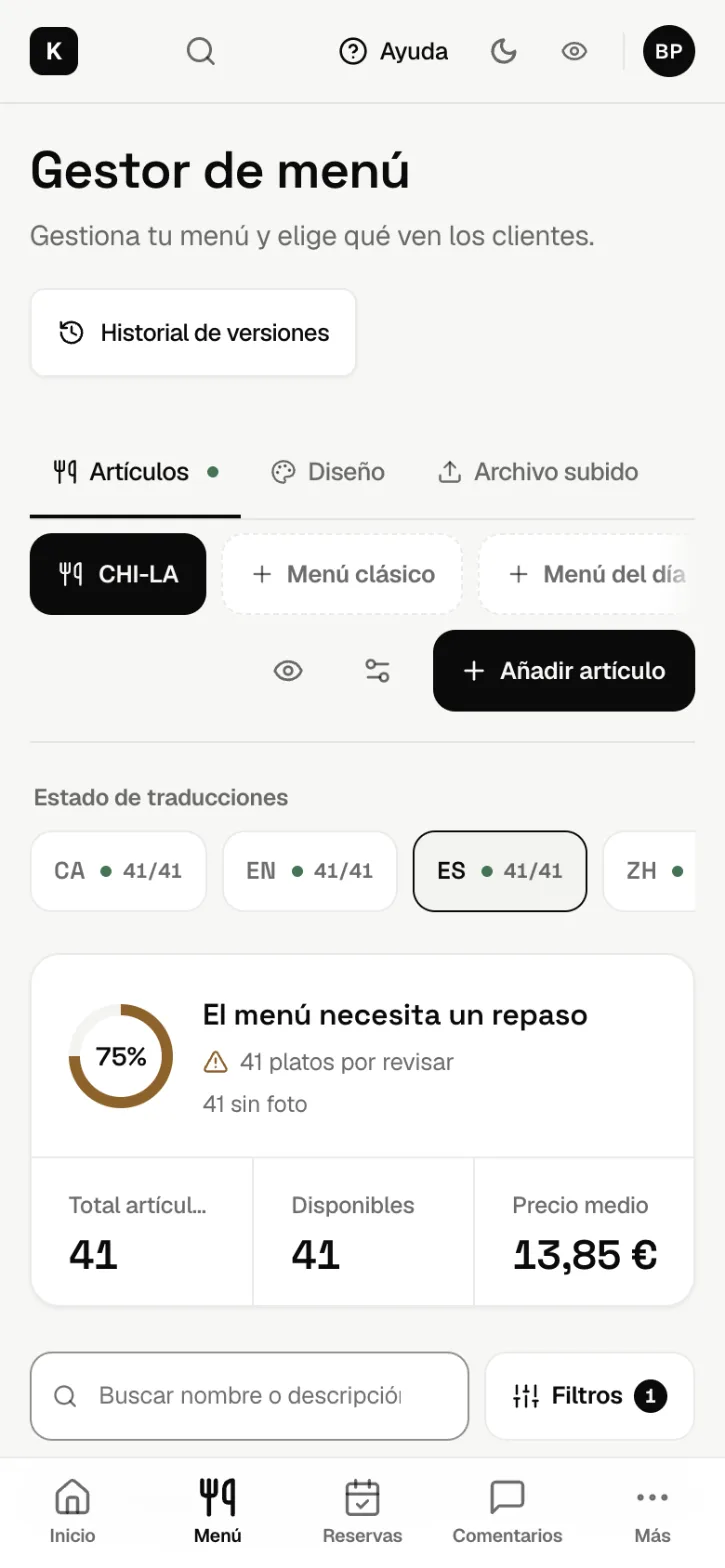
Chapter 55 min
Bookings and appointments
Guests book on their own from your page, at any hour, and you see everything in one list. No more notebook, no more phone ringing in the middle of service.
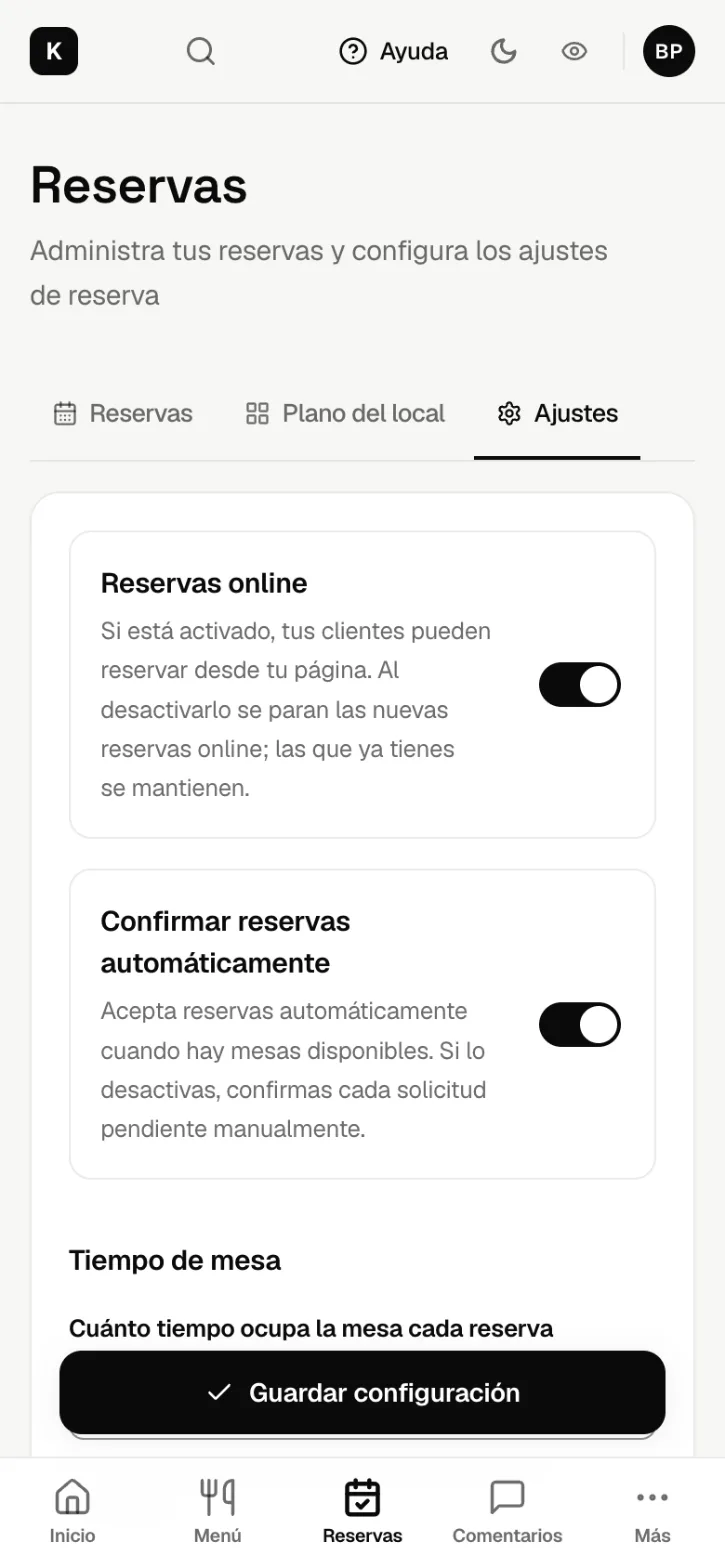
Chapter 65 minRestaurants and barsExtra · whenever you like
Orders without paper slips
The waiter takes the order on their phone and the kitchen sees it straight away on a tablet. Like the paper order pad, except it never gets lost and the handwriting is always clear.
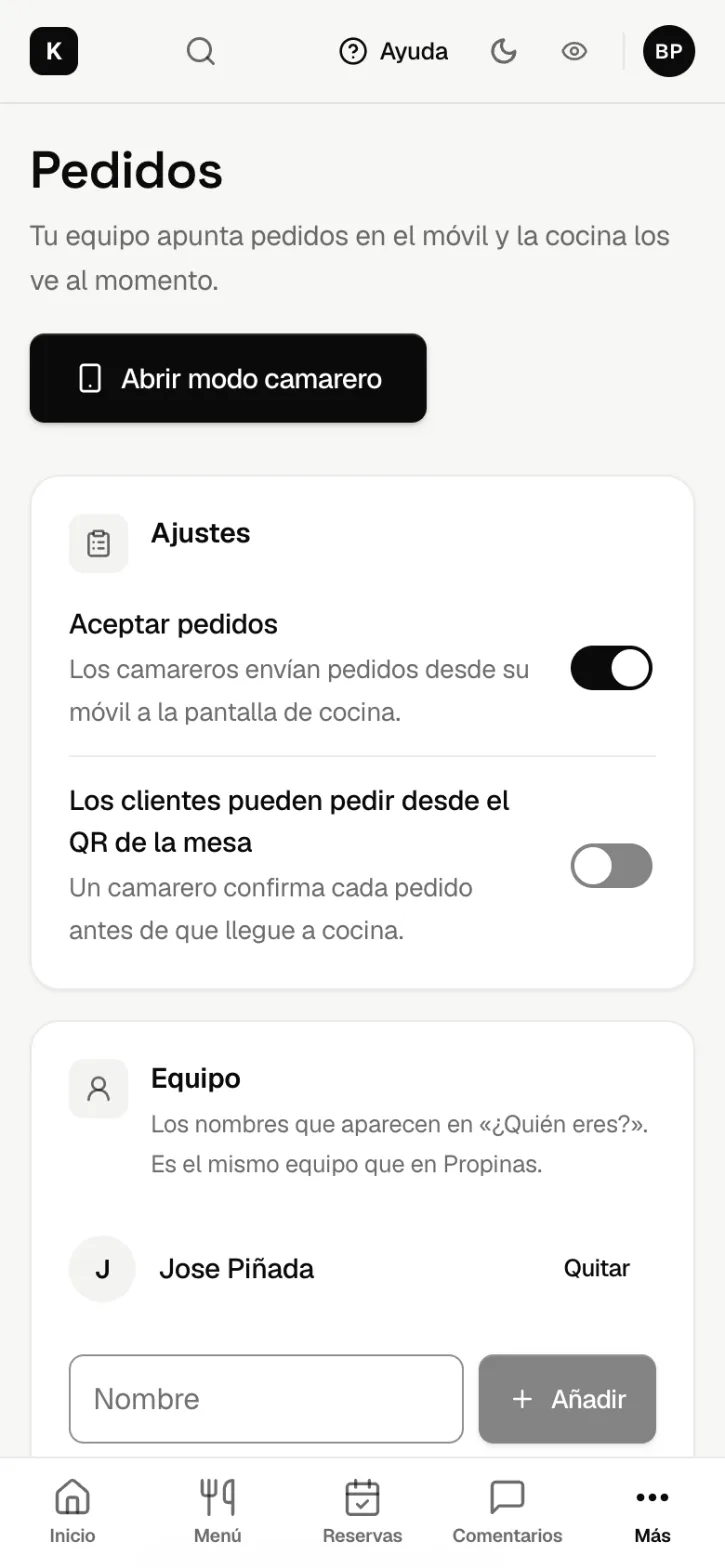
- Every day, on that phone, they open kwibli.com/camarero and go straight to Orders; the tablet goes to Kitchen.
Chapter 710 min
Tips and payments
More and more guests don't carry cash. With Kwibli they tip by card, Apple Pay or Google Pay in seconds, and the money goes straight to your account.
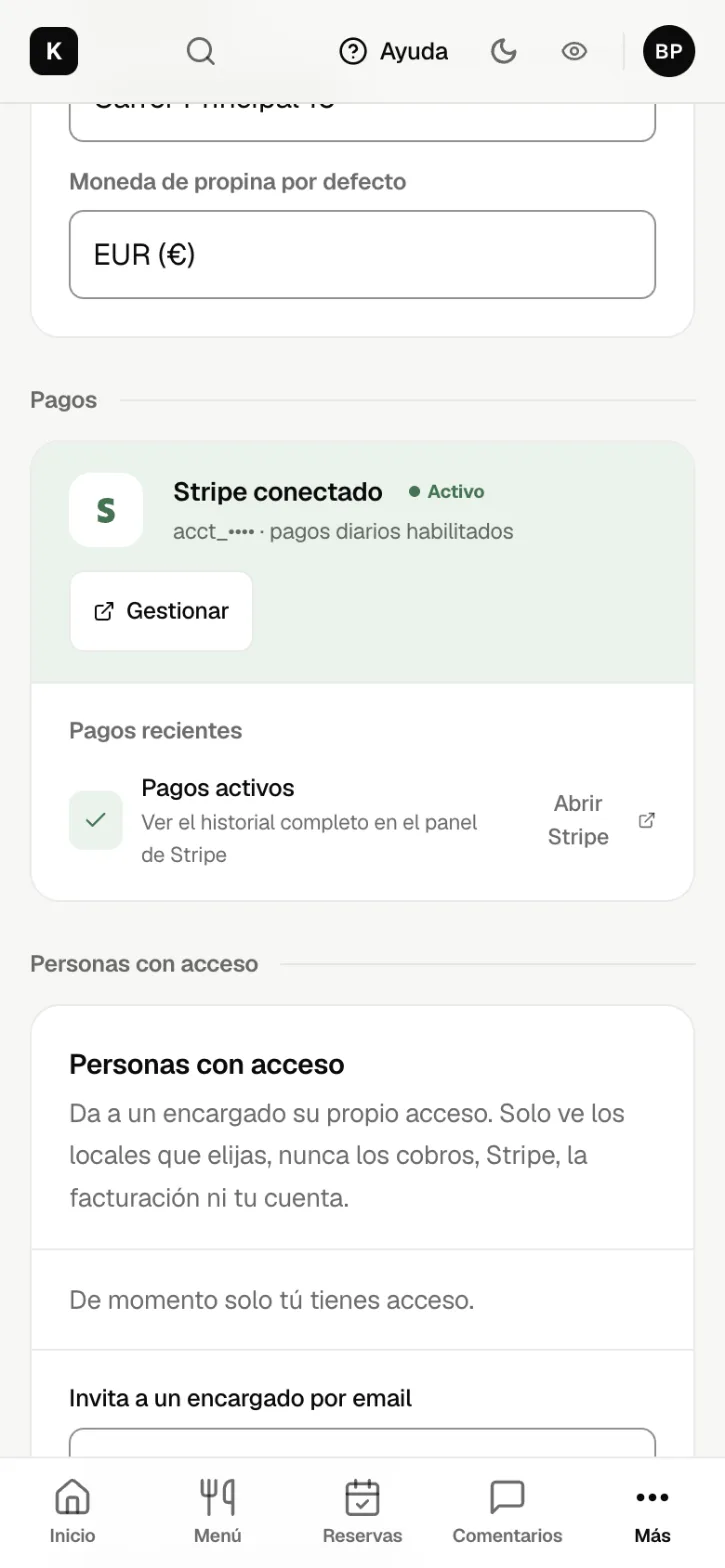
Chapter 85 minExtra · whenever you like
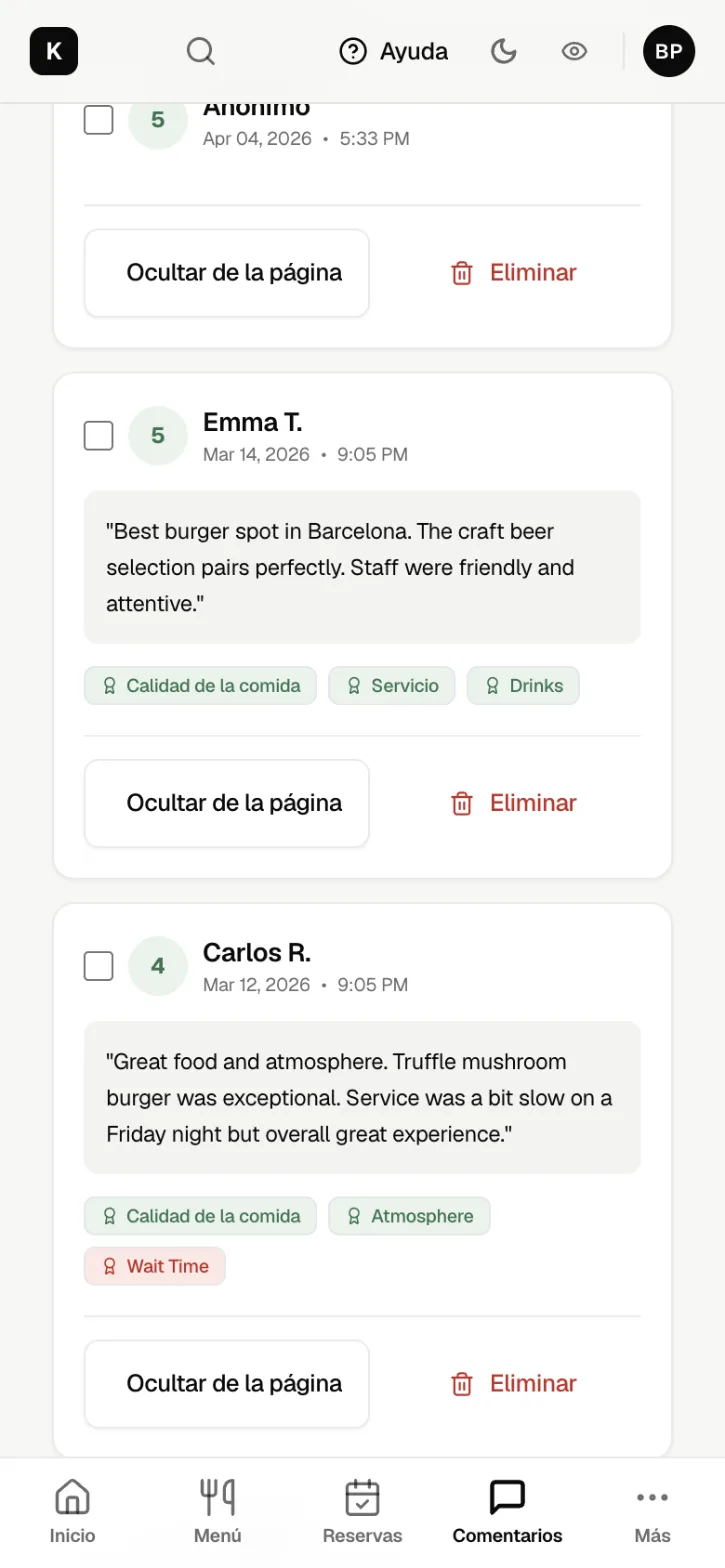
Bring them back
One happy guest who comes back is worth more than ten new ones. Listen to them, reward them and share the work.
Chapter 93 minExtra · whenever you like
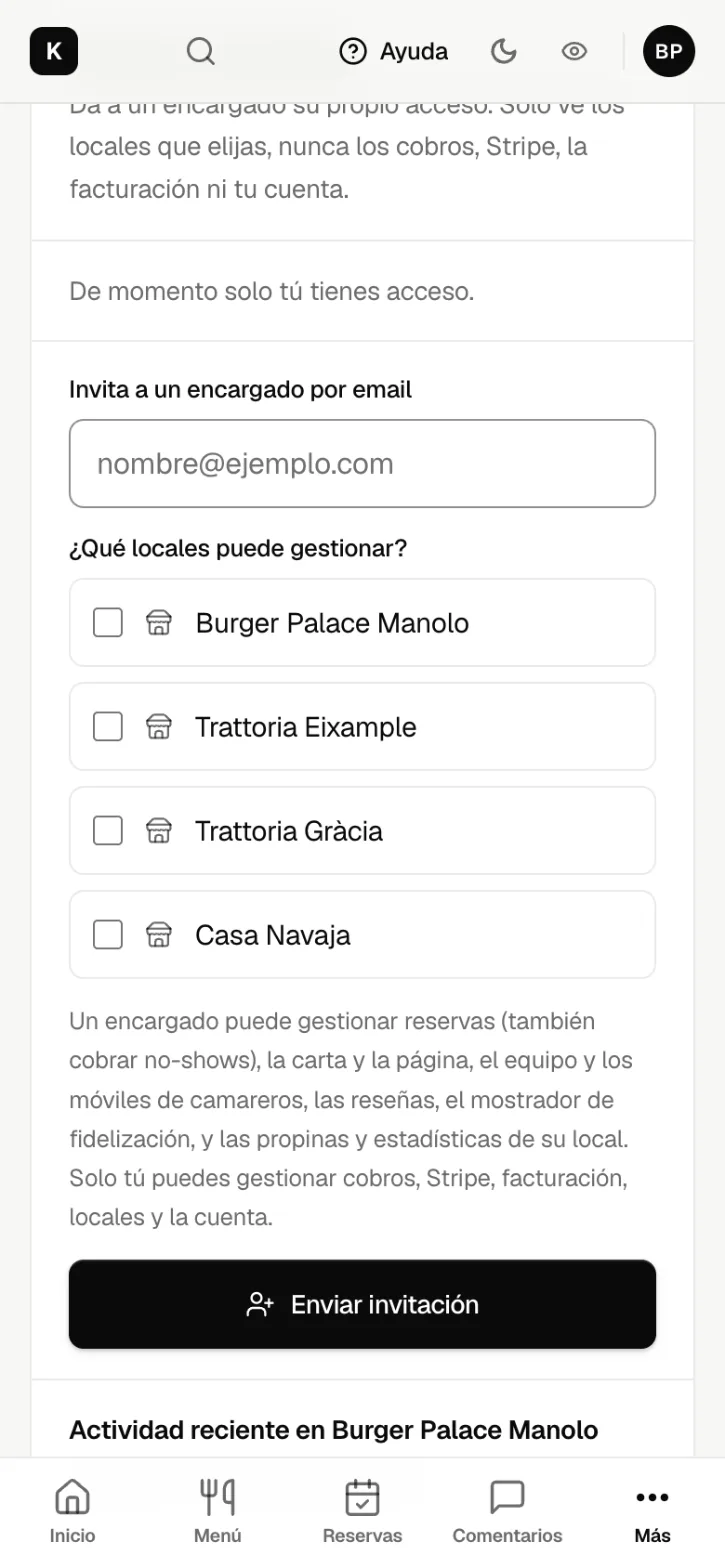
Your team
Have a manager you trust? Give them their own login so they can help with the day-to-day.
You’re live. What now?
With the QR up, your page works on its own. Three habits to get the most out of it over the next few weeks:
Your first-week checklist
0 of 6Your ticks are saved on this device. Chapters marked “Extra” have no task on the list: do them whenever you like.
Share your page
In Your Page → Page address, copy the link with the copy button and paste it into your Instagram bio, your Google listing and WhatsApp. That way people who haven’t visited yet find you too.
Check in every week
In Analytics you see money received, bookings and how many people scanned your QR. If hardly anyone scans, put it somewhere more visible.
Read what guests say
In Feedback you read every review. If several people say the same thing, that’s the first thing to improve.
Frequently asked questions
No. They scan the QR with their phone camera and that's it. No app, no account, no password.
Their phone's language: Spanish, Catalan or English. You write in your language and Kwibli can translate the menu for you.
No problem. Printed QR codes keep working even if you change the menu, the photos or your page address.
In Account & billing, tap Pause. Guests see “We’ll be back soon” until you switch it back on.
No. In Locations, tap Add location. Each one has its own page, menu, bookings and tips. To switch between them, tap the venue name at the top of the screen; on a phone, tap More at the bottom and pick the venue.
You have 24 hours to restore it from Locations. After that it’s gone for good.
Home shows this month’s summary. Analytics has the detail: money received, bookings and how many people scanned your QR. “Received” is what actually reaches you, after fees.
You make the refund from your Stripe dashboard. Kwibli's fee isn't refunded unless the problem was our fault.
Stuck?
- Tap Help at the top of any dashboard screen: it has short answers for that page and brings you to the chapter of this guide that explains it.
- Still not sure? Email us at hello@kwibli.com and tell us what you were trying to do. We reply within 3 working days.